End User Guide
This guide covers everything a standard user needs to get value from the AI Insight Dashboard.
What you can do
| Portal area | Route | What you can do |
|---|---|---|
| Dashboard | #/dashboard | Review your monthly AI usage, credit consumption, and cost breakdown by provider. |
| Daily detail | #/dashboard | Drill into a selected month to see day-by-day consumption. |
| Ecological impact | #/dashboard | Review estimated energy, GHG emissions, water, and source coverage below financial impact. |
| Help / Support | Navigation bar | Access the support contact configured by your System Administrator. |
Reviewing your monthly usage
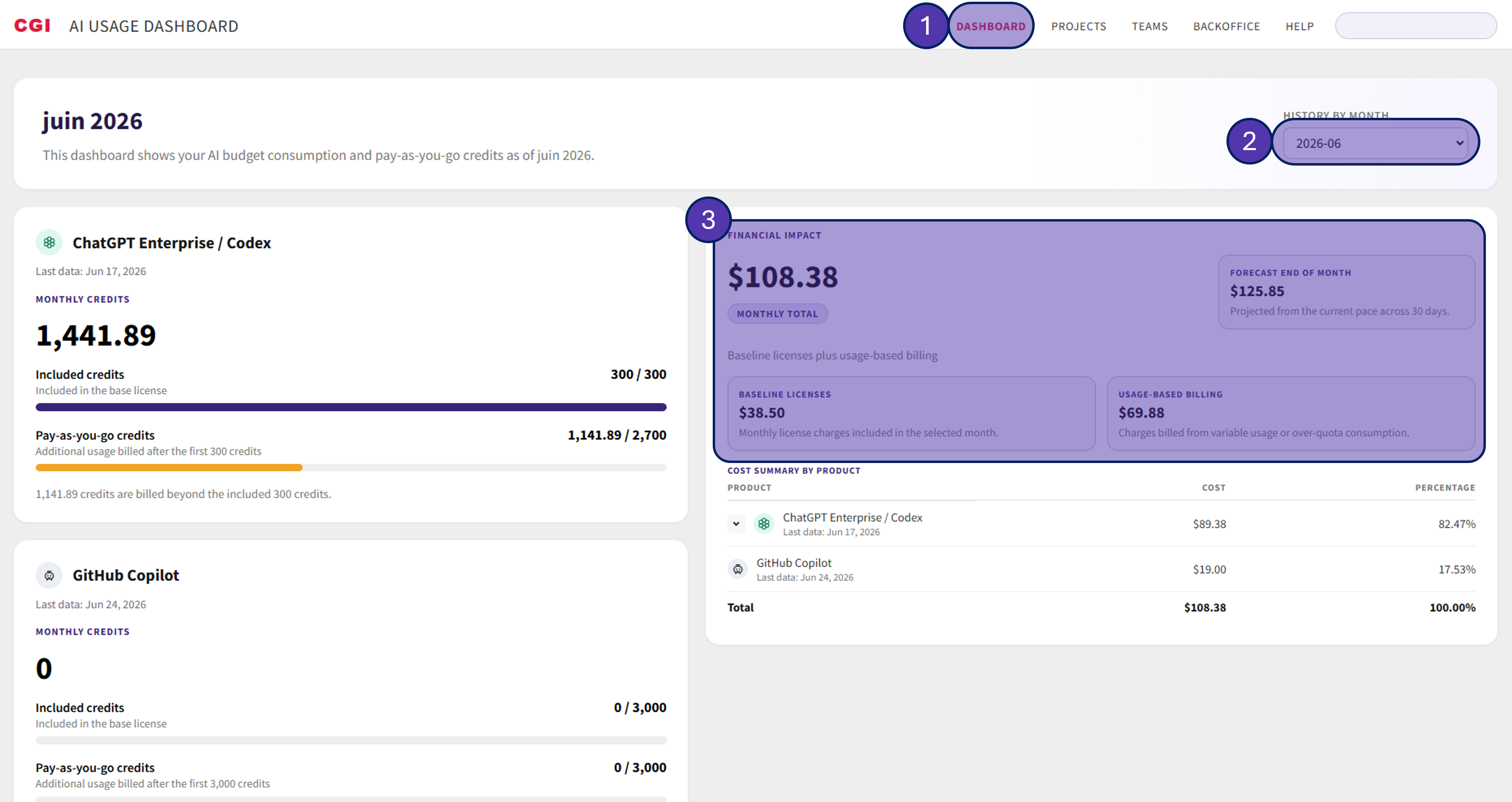
Your active licences
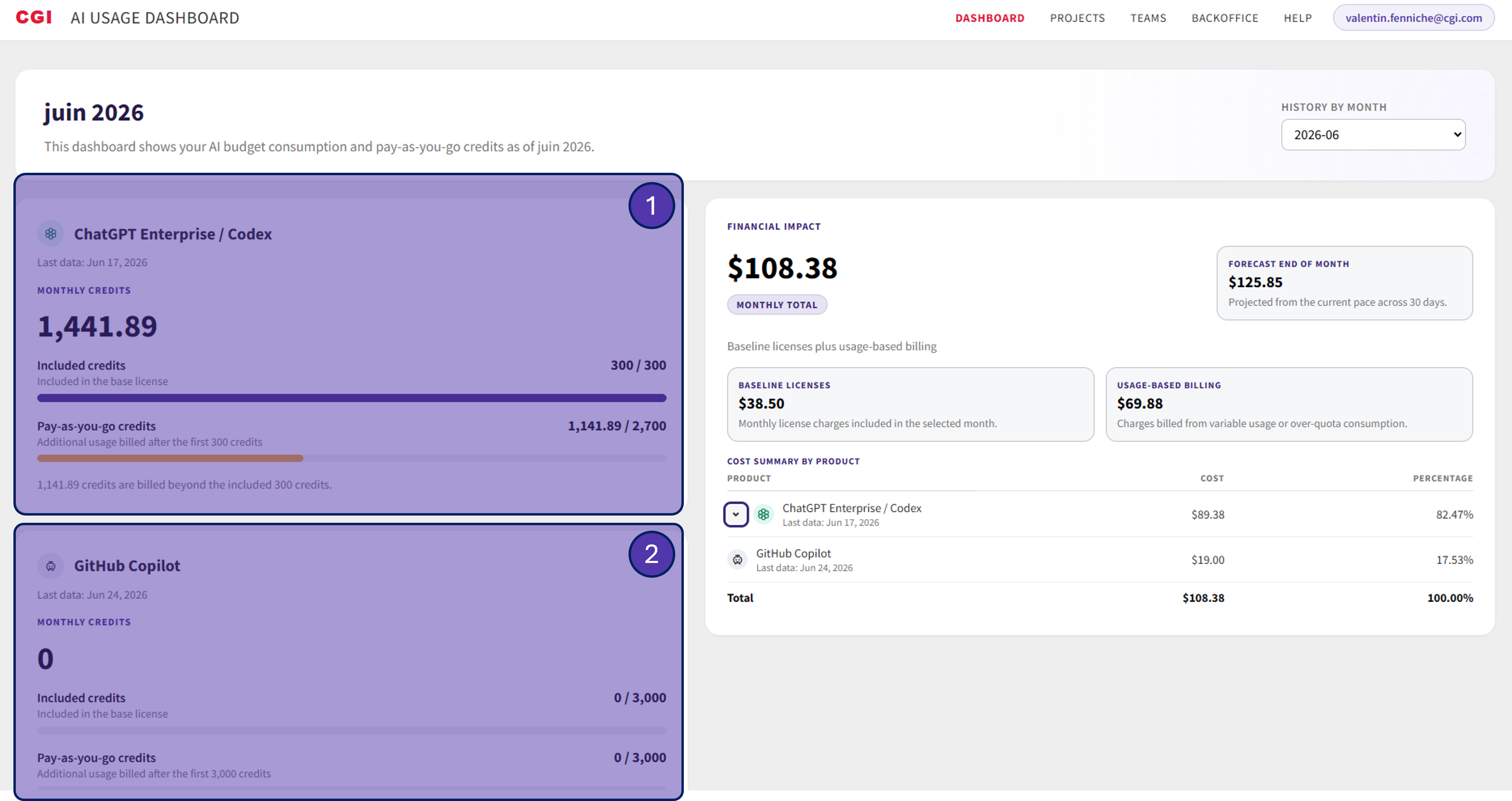
Below the summary cards, the Dashboard lists each AI provider for which you hold an active licence. For each provider you can see your monthly credit consumption, the included credits from your licence, and any pay-as-you-go usage billed beyond the included quota.
In the example below, this user has two active licences:
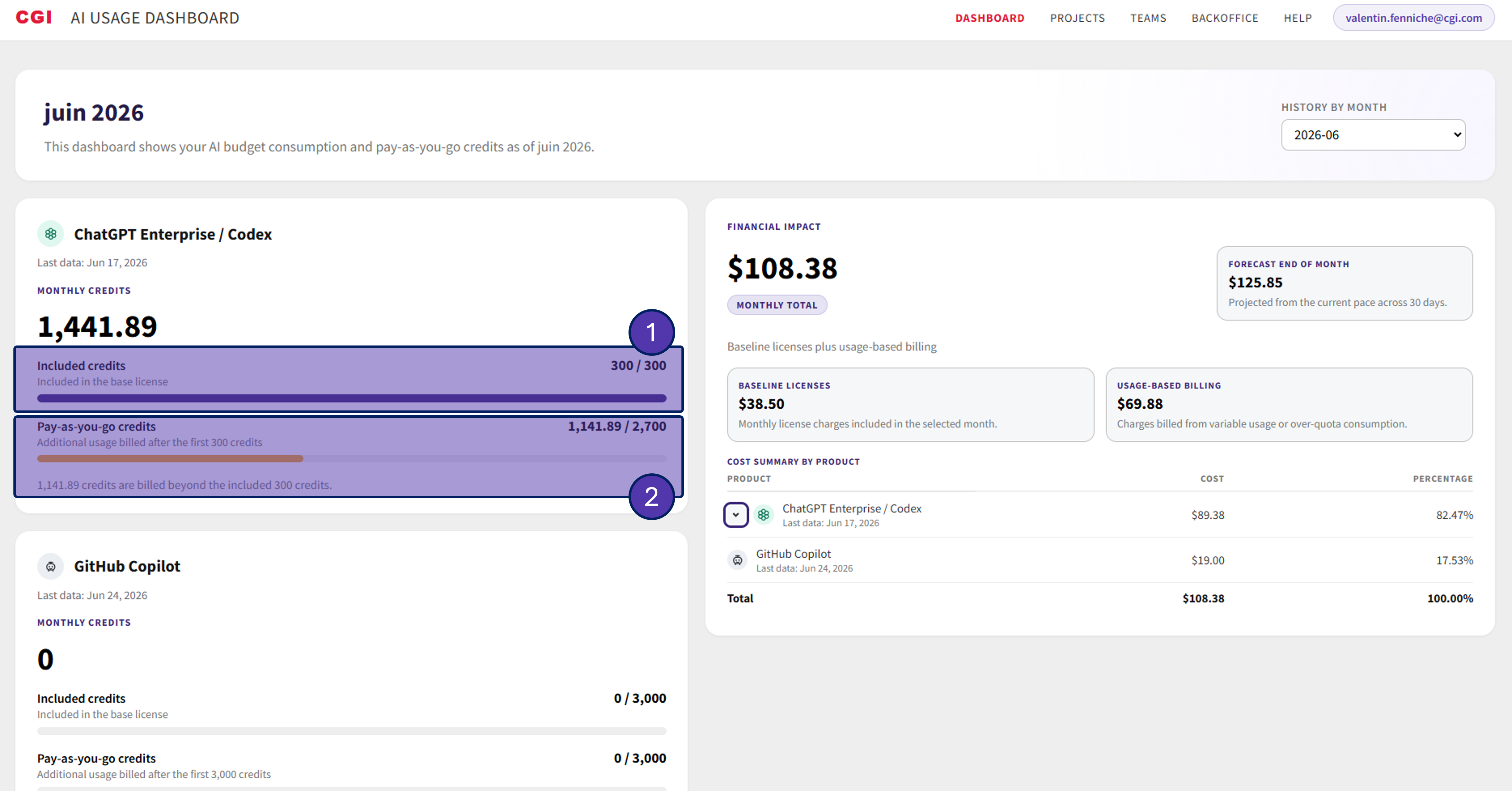
For each licence, the consumption breakdown is displayed as follows:
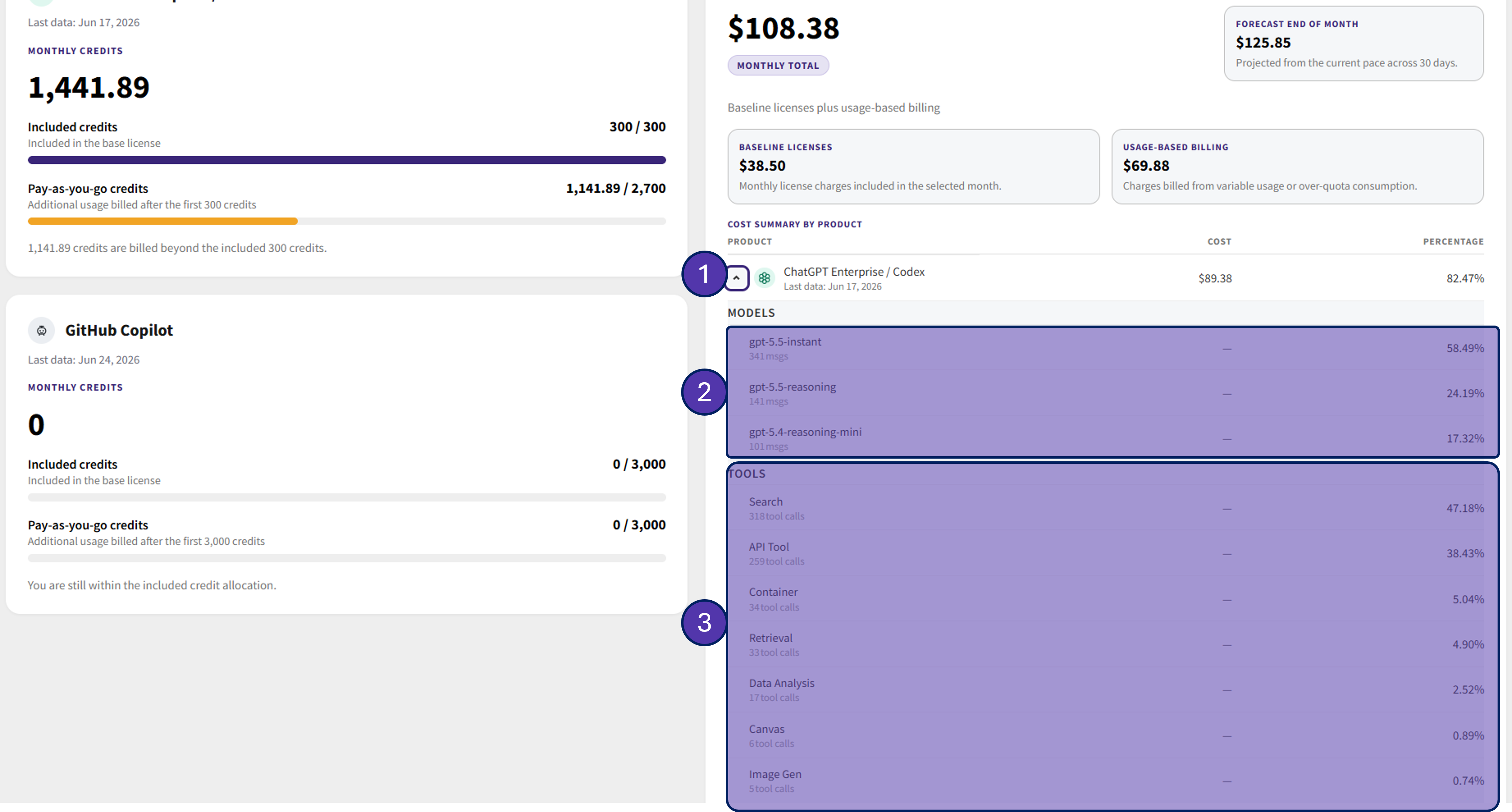
Detailed consumption view
For each licence, you can drill down into the details of your consumption. Click on a provider card to expand the detail view.
Ecological impact
Read Ecological Calculation for the calculation method, required token data, provider availability, limitations, and credits to EcoLogits.
The Ecological impact panel sits below financial impact and follows your selected month and personal scope. Energy consumption (kWh), GHG emissions (kg CO2e), and water consumption (L) are EcoLogits estimates, not measurements or additional charges.
Interpreting coverage and uncertainty
| Display | Meaning |
|---|---|
| Complete coverage | Eligible known data is covered for that metric; modeled assumptions and uncertainty still apply. |
| Partial subtotal | Only available current estimates are included. Missing activity is not zero. |
| Unavailable | The available evidence or configuration cannot currently support that metric. |
| Confirmed no usage or zero | Covered no activity or a genuine estimated zero, not an unreported period. |
| Pending or outdated | Replacement or source changes keep old last-known values outside current totals. |
| Previous configuration included | Current estimates still use their original saved region; a settings save alone does not recalculate history. |
100% of known tokens can coexist with unknown contributions. Each metric has independent coverage: unavailable water does not invalidate available energy or emissions. Zero-credit activity can still have ecological impact. Shared parent credits are not counted repeatedly across model details, and an unknown covered-through date does not mean zero activity.
Ranges describe estimation assumptions, not measured accuracy or statistical confidence. Output-based estimates may not include all prompt-processing impact. Hosting, grid, and water factors can use disclosed fallbacks. The provider region is selected by an administrator, not inferred from your location; details retain the basis actually used.
Use Retry ecological impact or Retry details after a load error. If data changes, details refresh and restart without mixing snapshots. These actions reload stored reports, not calculations, and leave credits and financial reporting unchanged.
Only a System Administrator can change ecological settings or confirm historical recalculation. Request a review of the relevant provider/month when source tokens, model, or geography need correction. Do not send prompts, credentials, or raw private exports in a support request.
For best practices on responsible and compliant use of AI tools within CGI, we encourage you to get in touch with your BU AI correspondent. They can guide you on approved use cases, data handling guidelines, and how to make the most of your AI licence responsibly.
While administrators can view aggregated usage data — such as which AI models and tools were used — at no point can they access the content of conversations held with any AI platform. The content of your exchanges with AI tools is never collected, stored, or visible in AI Insight.
Each user is solely responsible for the information they share with AI tools. CGI policies on data classification and confidentiality apply in full. Do not share sensitive, confidential, or client data with any AI platform unless explicitly authorised to do so.