Project Management helps project owners and Project Administrators follow AI usage, budgets, member activity, provider quotas, and consumption alerts. This guide also explains PMO actions and read-only project delegation after a project has been initialized.
Request a new project
Project initialization is requested outside the portal. Complete the form below with the project information needed by the AI Usage Dashboard team.
Provide the requested project details, ownership information, dates.
3
Submit the request. The AI Usage Dashboard team will review it and initialize the project.
4
Once the project is ready and you are registered as its owner, open Projects in the portal to start monitoring it.
iSubmitting the form starts the initialization request. The project appears in the portal after the request has been processed and your ownership has been configured.
Project Management capabilities
Feature
What you can do
Project directory
View the active projects you own, belong to as a member, or have been given delegated access to, and select one to explore.
Project details
Review the customer, effective dates, description, members, enabled providers, and shared quotas.
PMO activity
Review member timesheet status, pending and overdue weeks, zero-work declarations, effective periods, and audit history.
Delegated access
Give selected users read-only visibility into an owned project without transferring ownership or management authority.
Financial impact
Follow actual spend, the end-of-month forecast, quota consumption, provider contribution, and cost allocation.
Ecological impact
For authorised financial viewers, review project energy, GHG emissions, water, source coverage, and original estimation basis.
Provider quotas
Adjust the monthly provider quotas available to the project.
Notifications and alerts
Configure consumption thresholds that help the project track its budget.
Personal dashboard
Continue to review your own monthly AI usage and estimated costs separately from project totals.
Who can do what
Persona
Project scope
PMO and delegation permissions
Project owner
Projects they own
Can review PMO activity and manage read-only delegated access. Cannot validate or correct member timesheets on behalf of a member.
Project Administrator
All active projects
Can review PMO activity, validate missing or draft weeks on behalf of members, and correct validated weeks.
Delegated user
Projects explicitly delegated to them
Can view project details, membership, PMO activity, financial impact, and notifications. Cannot change project data or perform PMO actions.
Project member
Active projects they are a member of
Can view permitted project context, but membership alone does not grant financial or ecological reporting. Cannot change project data or perform PMO actions on behalf of others.
iDelegated access is read-only and additive. It does not make the user a project owner, Project Administrator, or project member, and it does not transfer approval authority.
Review project details
1
Select Projects from the navigation bar.
2
Open Directory to see the active projects you own, belong to, or have delegated access to.
3
Select a project, then open Project details.
4
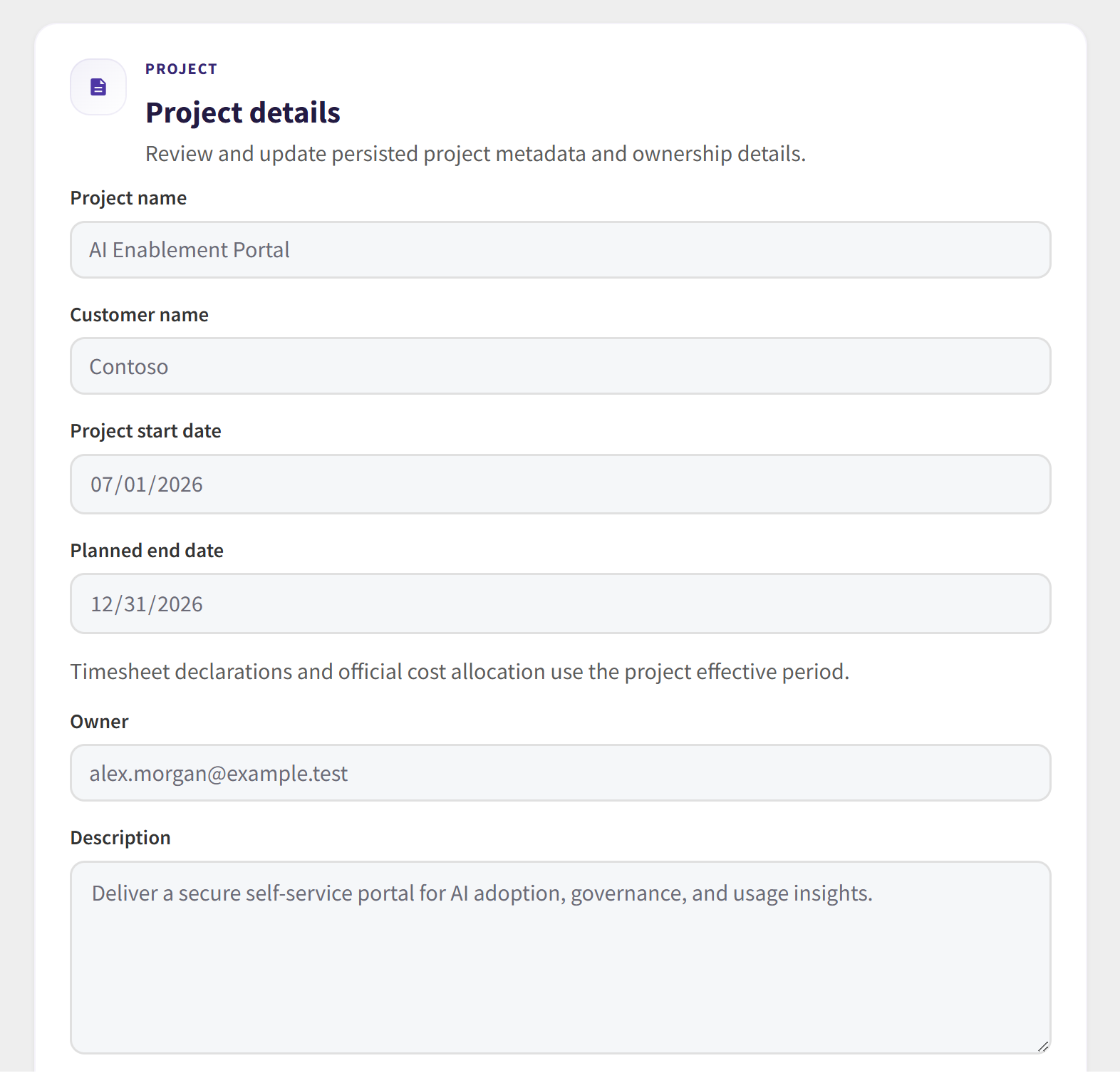
Review the customer, effective dates, owner, description, and shared provider quotas.
Project details for an owned project. Project owners can update shared provider quotas while broader metadata remains read-only.
Monitor member activity with PMO
The PMO activity view turns weekly timesheet declarations into a project-level validation overview. Members declare the morning and afternoon half-days they worked on the project, and the PMO uses the view to confirm that this activity is complete and reliable.
How timesheets correlate work with AI consumption
Imported AI usage identifies how much each member consumed during a reporting month, but it does not identify the project behind every individual AI request. Validated timesheets provide the missing project context by recording the half-days each member worked on each project.
Information
What it contributes
Imported AI consumption
The member's usage and estimated cost for the selected reporting month.
Weekly timesheet
The morning and afternoon slots the member declares as project work, including zero-work and weekend cases.
PMO validation
Confirms which slots are official, resolves missing or incorrect declarations, and preserves an audit history.
Financial and ecological impact
Use effective project/member dates, provider eligibility, and daily half-day participation to allocate the member's usage across projects.
For example, with two eligible overlapping projects, a validated morning on Project A and afternoon on Project B assign half of that day's allocatable usage to each. Other days are allocated separately; monthly slot totals alone do not determine a monthly percentage. This correlates usage with declared work without claiming request-level project tracking.
iOnly official, effective slots contribute to slot-based allocation. A missing declaration day retains the membership fallback; an explicitly validated empty day excludes that project from an overlapping allocation. A sole eligible project receives the full day. Financial rounding and ecological display precision remain separate.
1
Select a project, then open PMO activity.
2
Choose a start date and end date. Optionally filter by declaration status or search for a member by name or email.
3
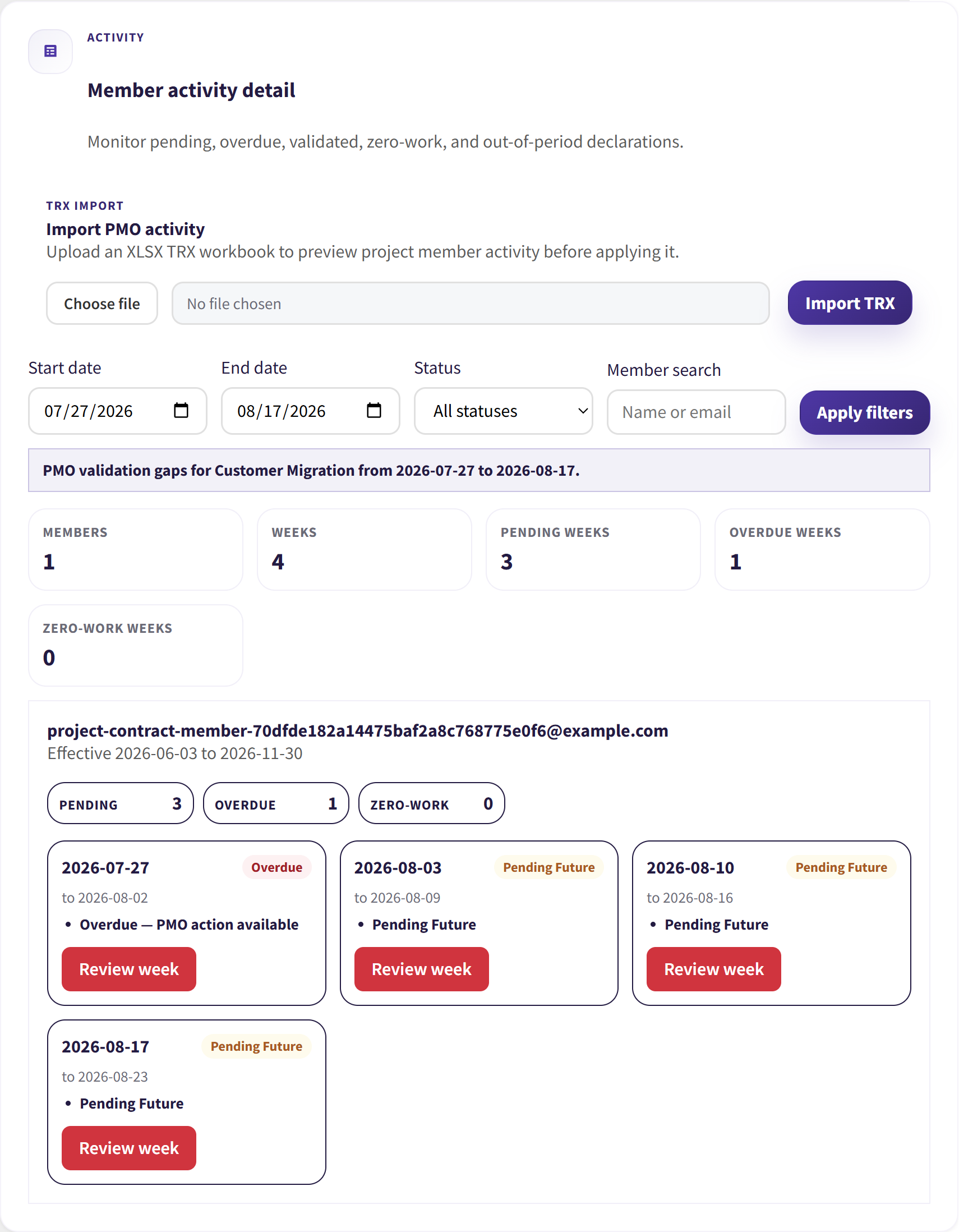
Select Apply filters, then review member, week, pending, overdue, and zero-work totals.
4
Use each weekly status card to distinguish future declarations, overdue work, member-validated weeks, on-behalf validations, PMO corrections, and out-of-period activity.
5
Select Review week to inspect the half-day slots and audit history that support the project's consumption allocation.
PMO activity on localhost. The summary and weekly cards make overdue declarations and pending future weeks visible without relying on color alone.
Validate or correct a week on behalf of a member
These delegated PMO actions require the ProjectAdministrator or Admin role. Project ownership and read-only delegated access do not grant them.
1
From PMO activity, open the member's week with Review week.
2
Review and, when needed, adjust the selected morning and afternoon slots. Out-of-period or conflicting slots cannot be selected.
3
Optionally enter a reason or note.
4
Choose Validate on behalf for a missing or draft declaration, or Submit correction for an already validated week.
5
Confirm the new status and review the audit history. It records the acting administrator, action, timestamp, optional reason, and the slot changes.
iA PMO correction updates the official slot record used by subsequent reporting. It does not change the member's imported AI consumption; it changes how that consumption is attributed between projects.
Delegate read-only project access
A project owner can delegate visibility to active users who need to monitor the project without changing it. Delegates can view project details, membership, PMO activity, financial impact, and notifications.
1
Select the owned project, then open Delegated access.
2
Search for an eligible user by name or email and add the user to the selection.
3
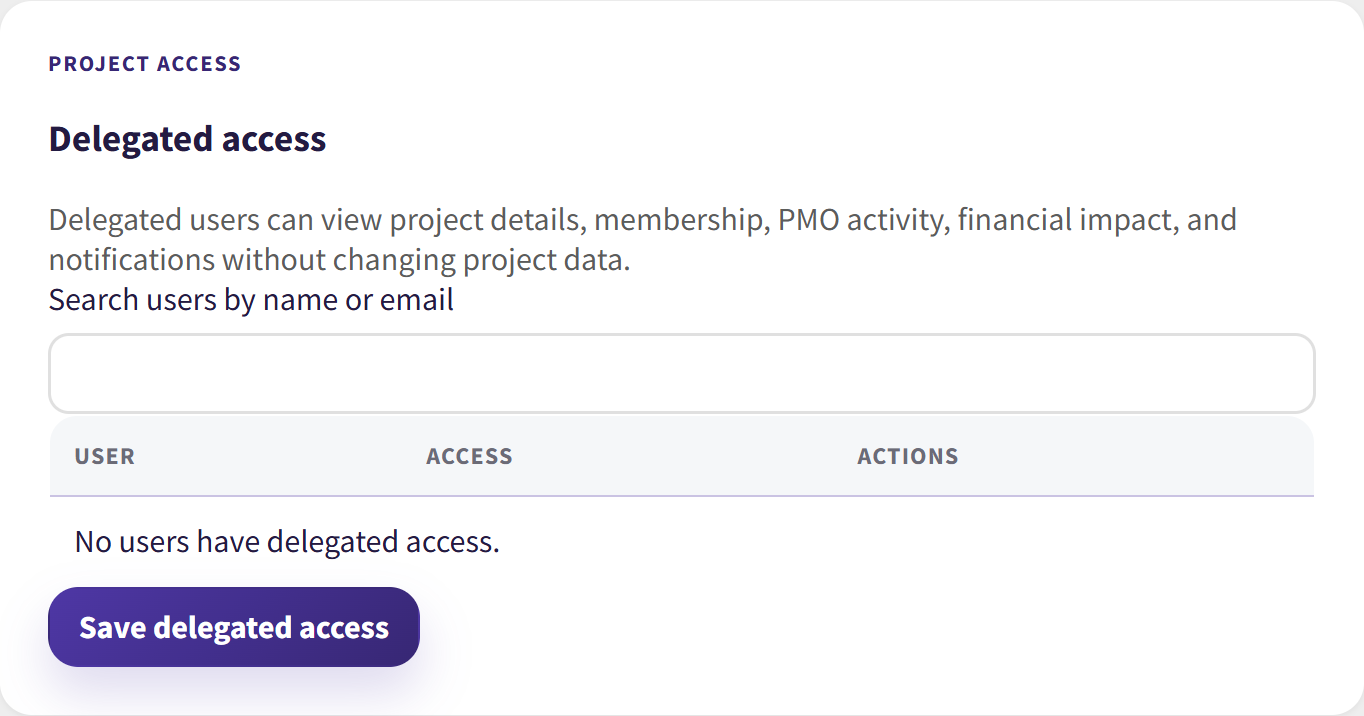
Review the selected users, then choose Save delegated access.
4
To revoke access, remove the user and save again. The former delegate loses project visibility after refreshing or starting a new session unless another permission still grants access.
Delegated access panel on localhost. Project delegation provides view-only access and does not allow changes or PMO validation actions.
Review financial impact
1
Select an owned project.
2
Open Financial impact from the Projects menu.
3
Select the reporting month using the month picker.
4
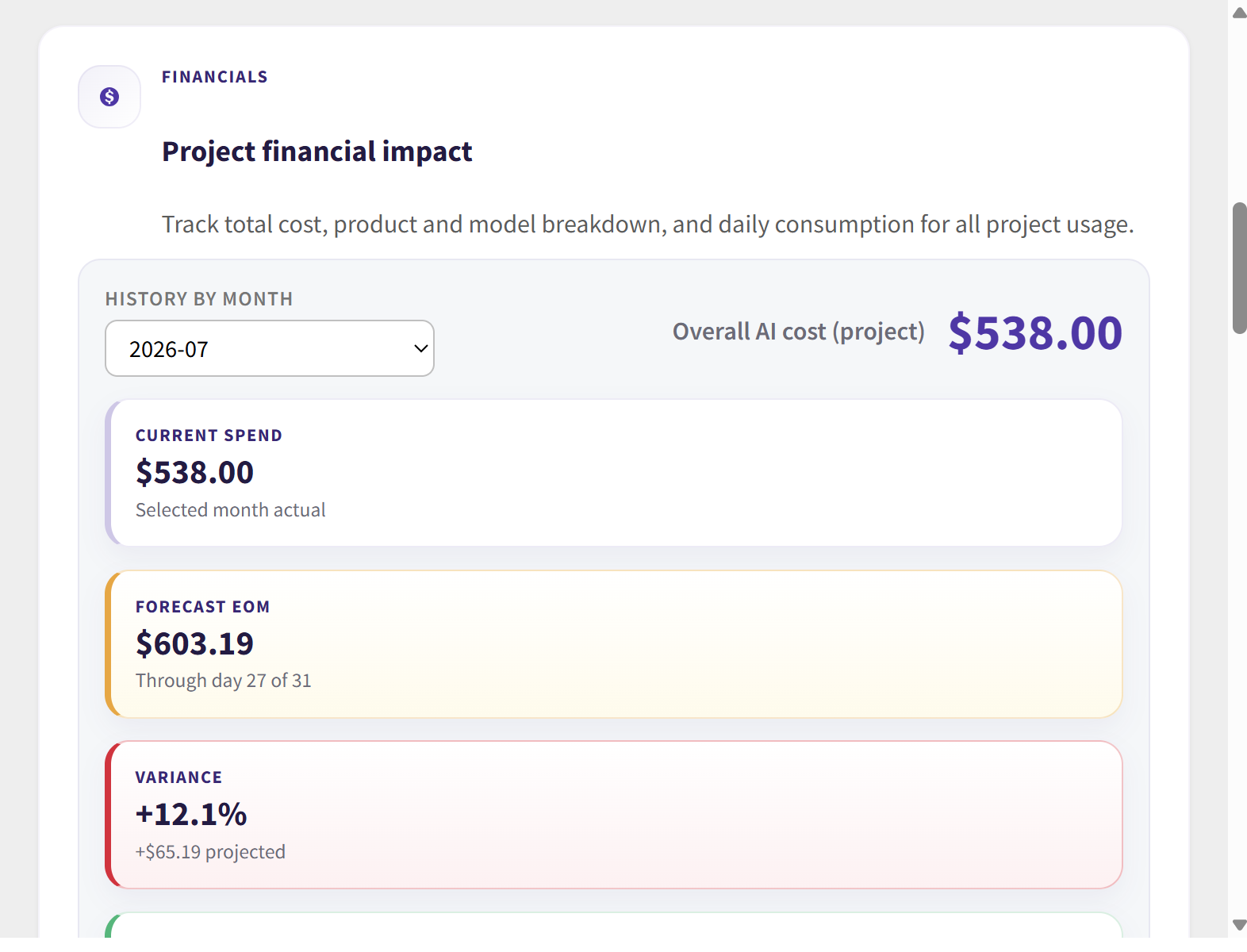
Review current spend, end-of-month forecast, quota usage, provider contribution, and cost allocation. For shared members, check the allocation basis, validated project slots, total validated slots, and resulting project ratio.
The financial overview starts with the selected month, actual project spend, forecast, variance, and project quota usage.
iIf financial information is missing or looks incomplete, contact the AI Usage Dashboard support team so they can check the project's data.
Review ecological impact
In Financial impact, select the project/month and read Ecological impact directly below the financial report. Owners, authorised delegated project viewers, Project Administrators, and System Administrators can use this report; ordinary project membership alone is insufficient.
Energy (kWh), GHG emissions (kg CO2e), and water (L) use the same daily allocation context, not rounded costs or quota values. Open Coverage and bounds for per-metric coverage and separate unknown-token counts. Provider / model details and Estimation basis preserve original geography, calculation time, intervals, and factor-specific fallbacks. See coverage and uncertainty: 100% of known tokens can coexist with unknown activity, and unavailable water is not zero.
Retry ecological impact and Retry details reload stored results without changing credits. Source, membership, or declaration changes can restart details for the still-selected context. Previous-configuration results retain original labels; pending/failed replacements keep outdated last-known values outside current subtotals.
Ownership or delegation cannot change provider geography or launch historical recalculation. Ask a System Administrator to review the provider and date range. Admin users can open Ecological settings and return to the selected project/month/financial view.
Update provider quotas
1
Select the project.
2
Locate the provider quota fields in the detail panel.
3
Enter a monthly quota per provider, or leave blank to inherit the global included-credits value.
4
Save changes.
Configure threshold notifications
1
Select the project.
2
Open Notifications & alerts.
3
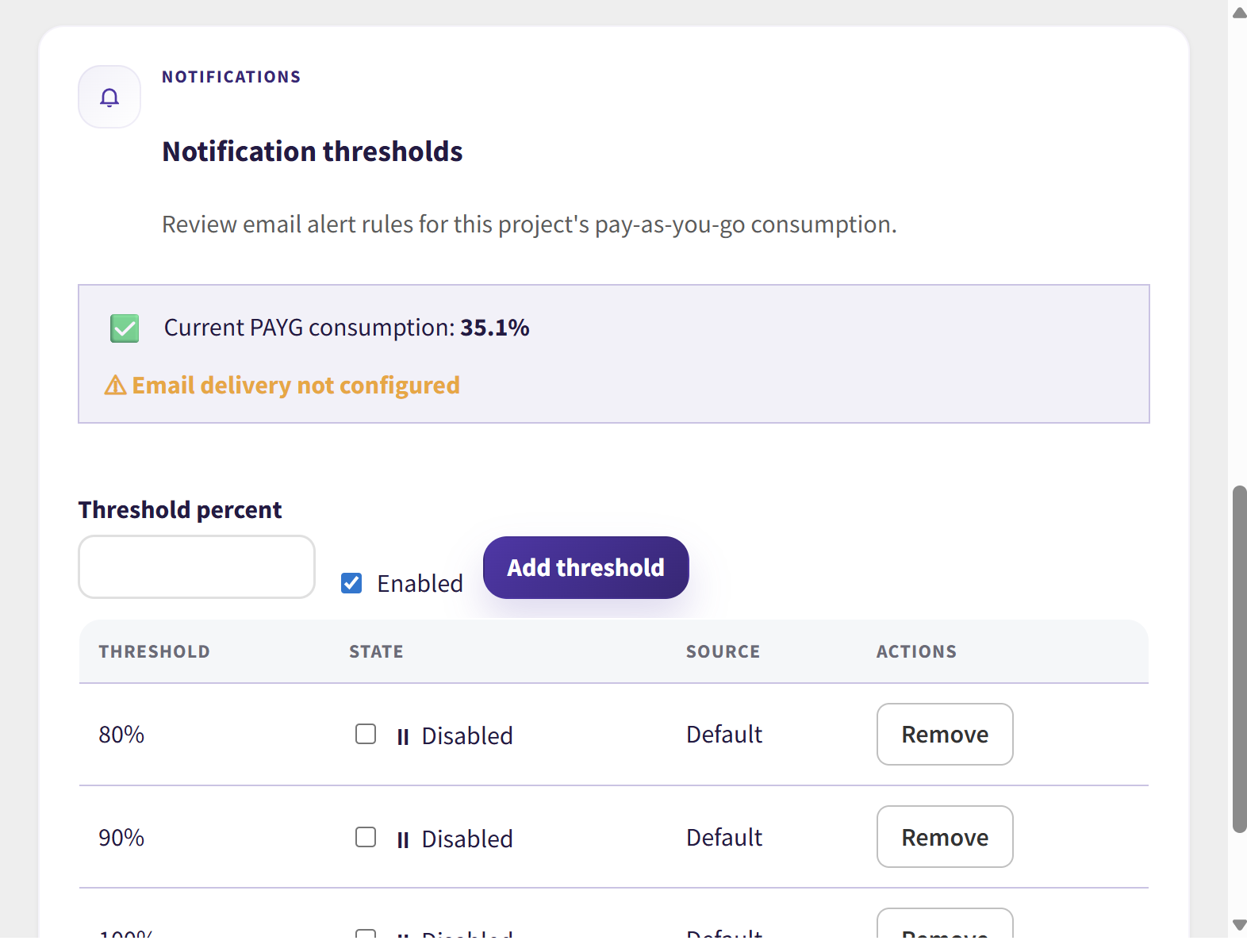
Review the default 80%, 90%, and 100% threshold rows.
4
Enable the rules you want, or add custom percentages.
5
Changes are saved as you enable, disable, add, or remove a threshold.
Notifications & alerts shows current PAYG consumption and the default 80%, 90%, and 100% rules. The warning appears when email delivery is not configured.
It appears after the initialization request has been reviewed, the project has been created, and you have been registered as its owner.
Why can I not see a project?
Confirm that the initialization request has been completed and that you were identified as the project owner. Contact the AI Usage Dashboard support team if the project is still missing.
Can project members open Project Management?
Active membership provides Projects workspace and permitted project-context visibility, not financial or ecological reporting. Those reports require ownership, authorised delegated project access, ProjectAdministrator, or Admin. A business-role label does not add permissions.
Can a project owner validate timesheets on behalf of members?
No. A project owner can review PMO activity, but on-behalf validation and correction require the ProjectAdministrator or Admin role.
Does the timesheet prove which project generated each AI request?
No. Imported usage is associated with the member and reporting period. Validated project half-days provide a proportional allocation basis that correlates the member's monthly consumption with the projects where they worked.
What can a delegated user do?
A delegated user can view the delegated project's details, membership, PMO activity, financial impact, and notifications. Delegation is read-only and does not grant project changes, PMO actions, ownership, or access to other projects.
Does delegation replace project membership?
No. Membership represents participation in the project and its effective dates. Delegation grants read-only visibility. The two relationships are independent.