Getting Started
Everything you need before diving into your role-specific guide: how to sign in, what the navigation bar shows, and a glossary of key terms.
Signing in
AI Insight uses your organisation's Microsoft Entra ID account (formerly Azure Active Directory). No separate credentials are needed.
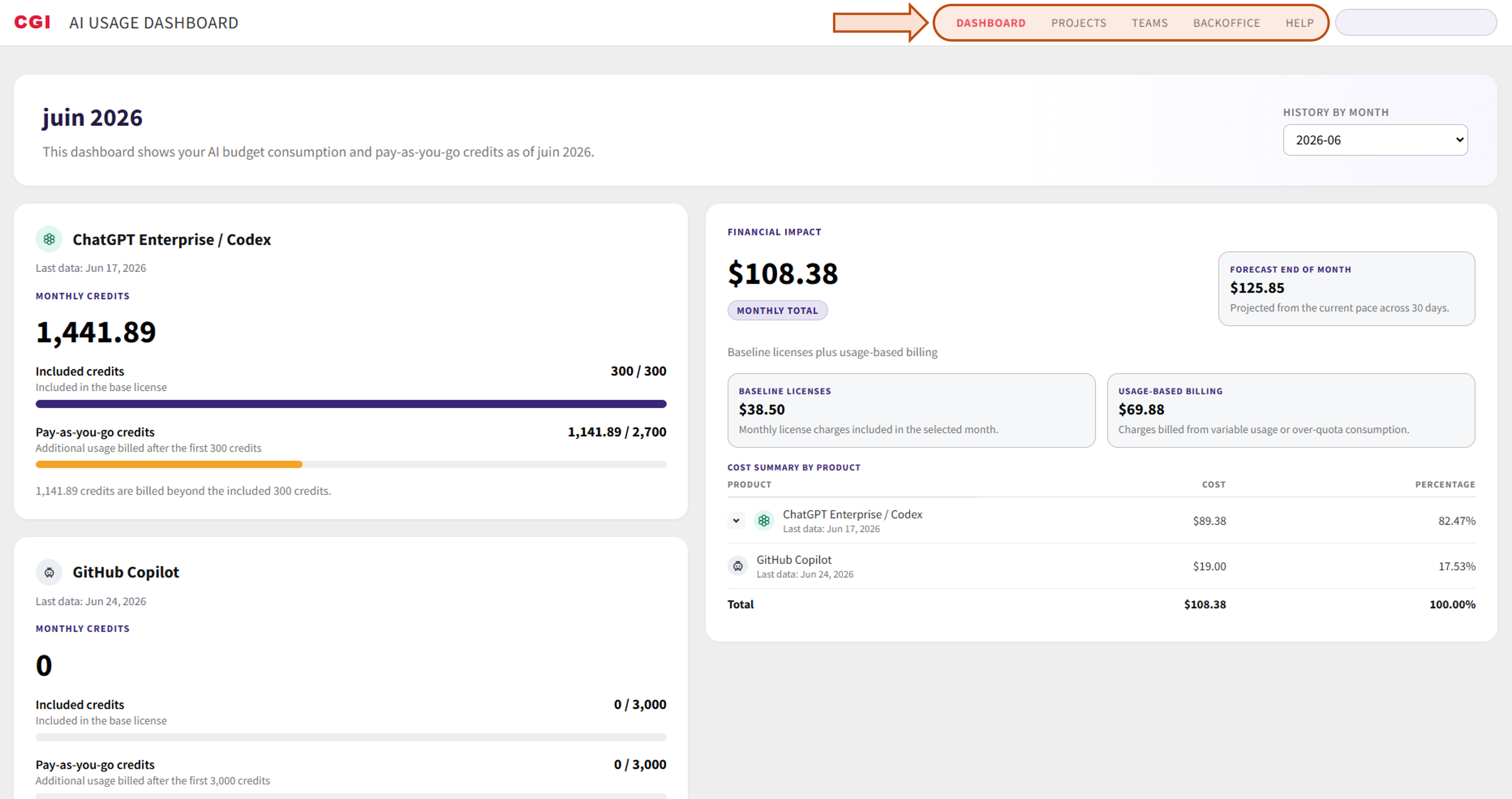
Understanding the navigation bar
The navigation bar shows only the sections you can access. Links are hidden — not just disabled — for areas you do not have permission to reach.
| Link | Who sees it | What it opens |
|---|---|---|
| Dashboard | All authenticated users | Your personal usage and cost summary |
| Teams | Team Managers, Team Collaborators, Admins | The team hierarchy workspace |
| Projects | Project owners, project members, delegated project users, Project Administrators, Admins | The projects workspace |
| Backoffice | System Administrators only | The administrative back-end |
Role overview
AI Insight uses a layered permission model. The links visible in your navigation bar depend on the roles and access grants assigned to your account.
| Role / Persona | How it is assigned | Key portal areas |
|---|---|---|
| User default | Automatic on sign-in | Dashboard only |
| Team Collaborator | Delegated by a Team Manager | Teams workspace (scoped branch, read-only) |
| Team Manager | Assigned by System Administrator | Teams workspace (owned branches) |
| Project Member | Added to a project by a Project Admin or owner | Projects workspace (projects you belong to) |
| Project Collaborator | Delegated by a project owner or Project Admin | Projects workspace (delegated projects, read-only) |
| Project Owner | Set as project owner by Project Admin | Projects workspace (owned projects) |
| Project Administrator | Assigned by System Administrator | Projects workspace (all projects) |
| System Administrator highest | Assigned by another Admin or seeded in config | Backoffice + all inherited rights |
Key concepts
Usage data and imports
Dashboard values are populated by usage exports uploaded by a System Administrator. If your dashboard appears empty or shows unexpected numbers, an import may not yet have been processed. Contact your System Administrator to verify.
The authorised-user snapshot
AI Insight maintains a snapshot of your organisation's user hierarchy. This snapshot determines how users appear in admin views and reporting. Users outside the current snapshot may appear anonymised.
Financial settings
Cost calculations across the portal are derived from financial settings configured in Backoffice. These settings cover model cost rates and included monthly credit assumptions per provider.
Threshold notifications
Team Managers and Project Owners can configure usage alert rules that trigger email notifications when consumption approaches or exceeds a defined percentage of the monthly quota.
Glossary
| Term | Definition |
|---|---|
| Usage record | A single line of imported AI usage data representing one user's consumption for a given model and reporting period. |
| Credit | The unit used to measure AI consumption. One credit corresponds to a set number of tokens or requests depending on the provider. |
| Provider | An AI tool or platform whose usage is tracked in AI Insight (e.g. GitHub Copilot, OpenAI, AWS KIRO, or a custom provider). |
| Team branch | A node in the organisational team hierarchy. Branches can have child branches (descendants), forming a tree. |
| Delegated grant | An explicit access permission given by a Team Manager to a collaborator, scoping their view to a specific branch. |
| Project | A tracked initiative linked to a customer name, an owner, and a list of members, with dedicated usage and financial views. |
| PAYG threshold | A percentage-based alert rule that sends an email when usage reaches a configured share of the monthly quota. |
| Authorised-user snapshot | A periodic import of the organisation's user hierarchy that determines who is recognised in reporting. |
| Backoffice | The administrative section accessible only to System Administrators — covers usage uploads, role management, financial settings, and custom providers. |
| App context | The server-side response (GET /api/app/context) that drives what each user sees: which links appear and what rights are active. |